Marketing Templates
Marketing templates help teams create on-brand materials without starting from scratch. Margins, logo placement, and type sizes are already built in, so you can focus on your content. Choose from document, ad and social, and presentation templates below.
Document Templates
Document Templates for Designers
Basic document templates are available in InDesign to support marketing and sales enablement communications. Margins and logo placements have been considered to bring greater consistency across our materials. Text sizes have been standardized and built into style sheets for ease of use. Templates are flexible and offer a variety of cover, titling, and styling options. Templates will be available in letter and A4 sizes.
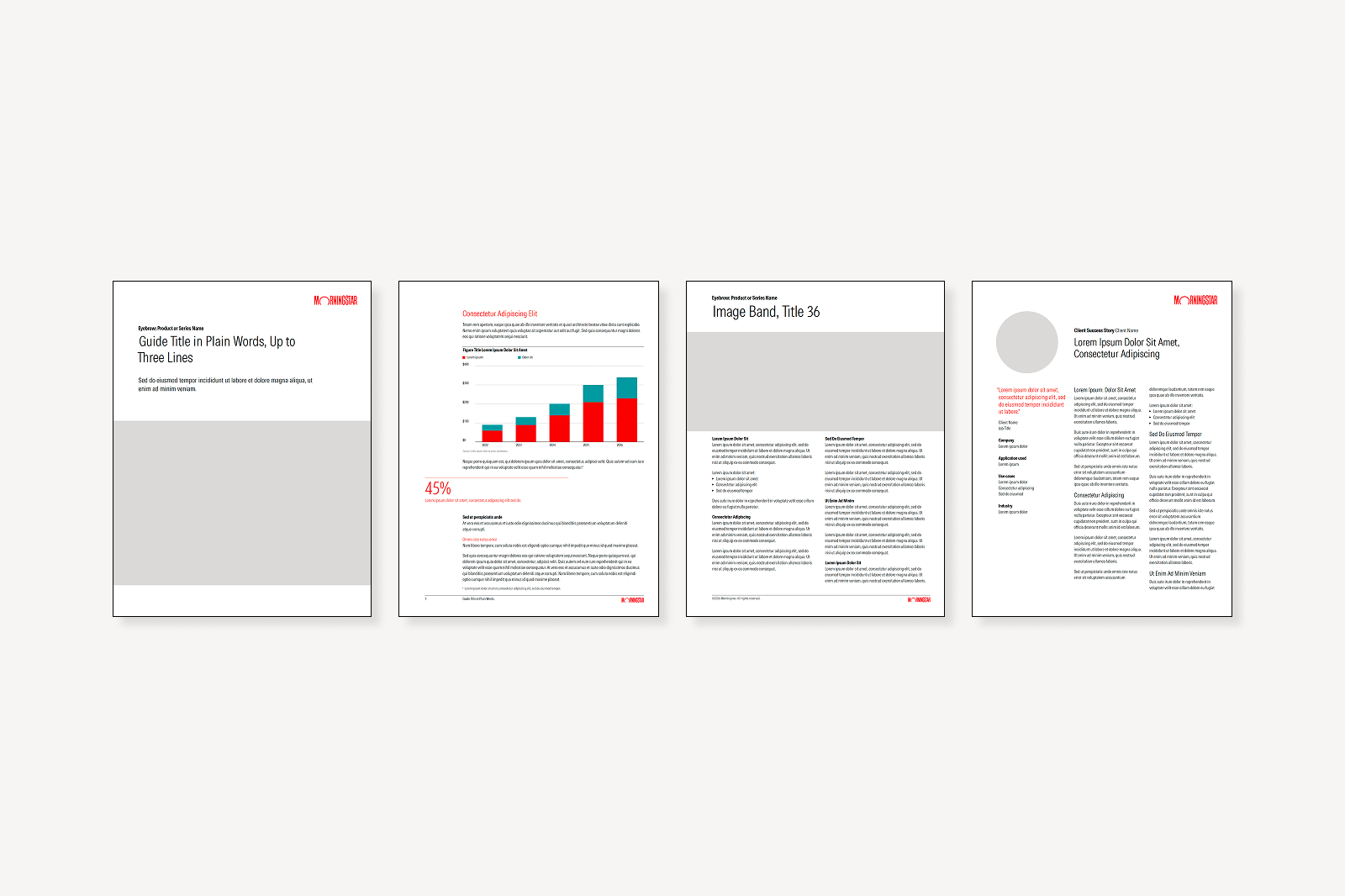
Template | File Format | Uses | Example Layout |
|---|---|---|---|
Marketing Guide (portrait) | InDesign | Marketing white papers, reports | |
One Pager | InDesign | Product sales enablement | |
Client Story/Use Case | InDesign | Client stories, product or process use-case studies |
To access the InDesign document templates for designers, download them from SharePoint.
Document Templates for All Employees
A variety of document templates are available in Microsoft Word for all employees to self-serve. General formatting, type sizes, and logo placements have been set to establish consistency and incorporate best practices. Templates will be available in letter and A4 sizes.
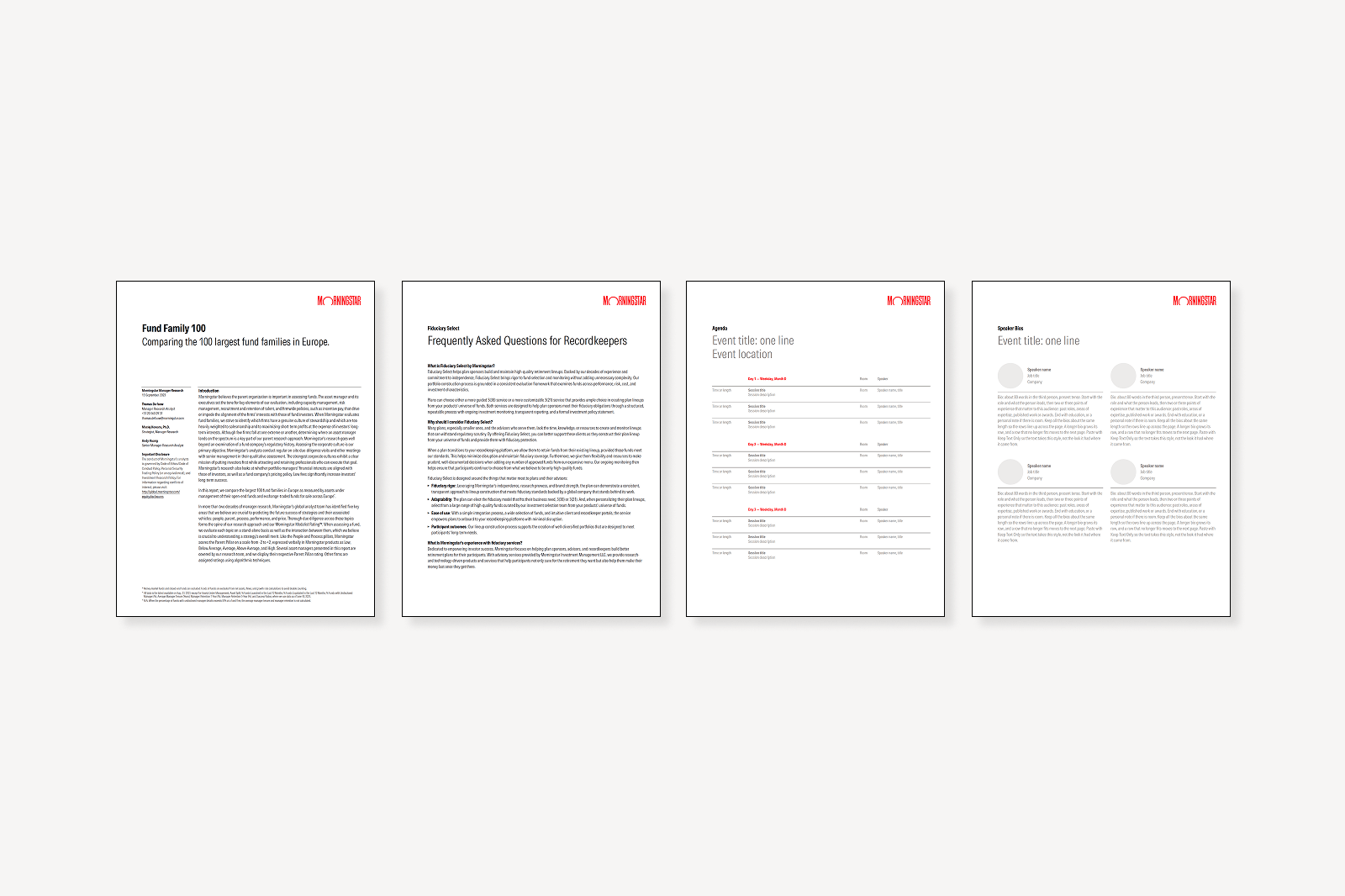
Template | File Format | Uses | Example Layout |
|---|---|---|---|
1-Column Documents | Word | General-use document layout, user guides, product guides, FAQs | |
2-Column Documents | Word | General-use document layout, product or sales enablement communications | |
3-Column Documents | Word | General-use document layout, product or sales enablement communications | |
Agenda | Word | Event agenda | |
Bio Sheet | Word | Event speaker bios, team bio overviews | |
Research Report | Word | Research reports | |
Research Report with Cover | Word | Research reports (with the optional visual cover) |
To access the Word document templates for all employees, download from SharePoint.
Ad and Social Templates
Ad and social templates are available to support campaign activations at all stages of the funnel. Margins, logo placement, and button specs have been standardized for consistency across our social channels and ad placements. Ad templates support a variety of content, including narrative, stats, charts, quotes, and webinar and event promotion.
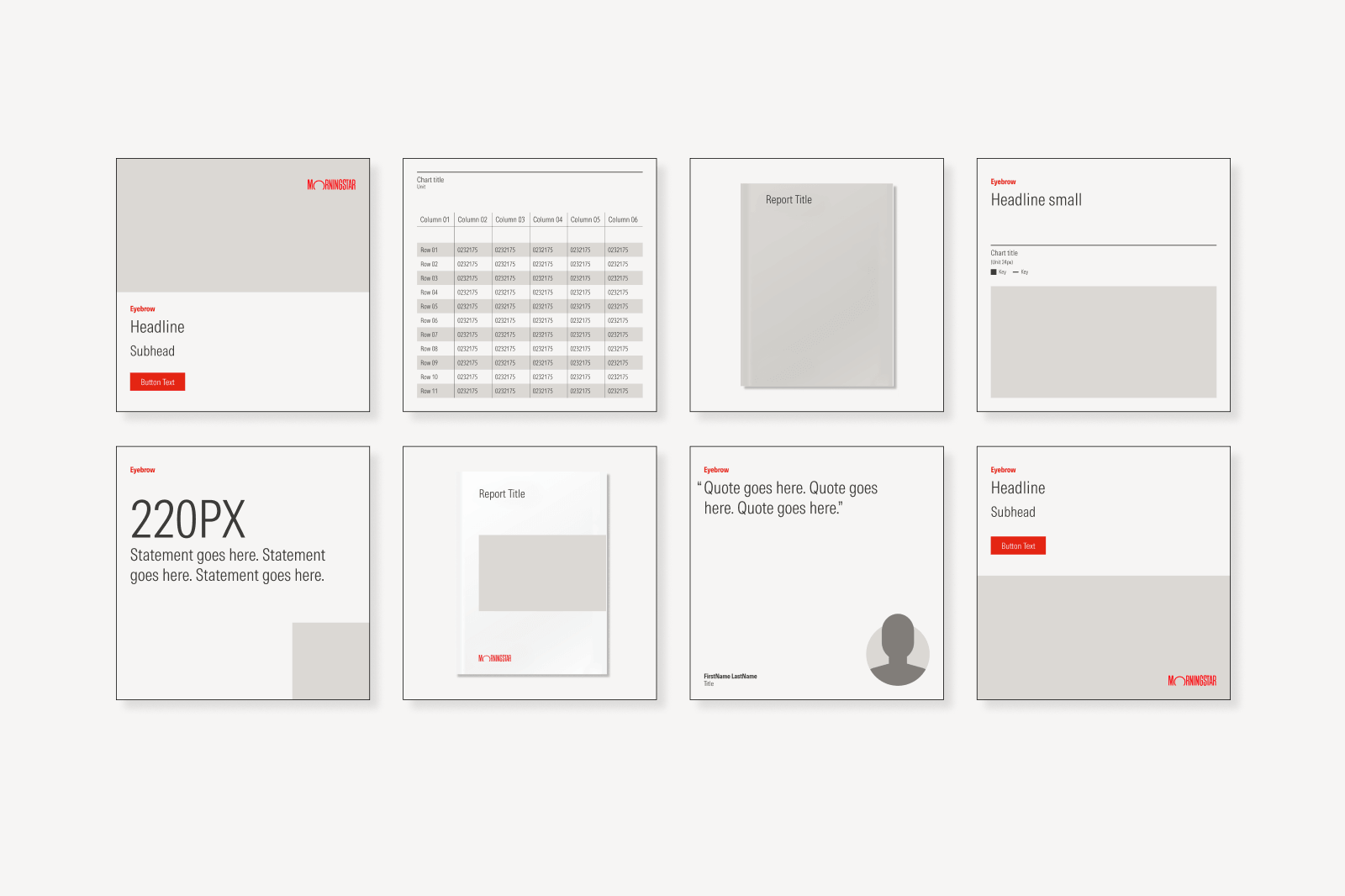
Template | File Format | Uses |
|---|---|---|
Digital Display Ads | Figma | A variety of ad sizes for in-house and external digital ad placements |
Google Demand Gen Ads | Figma | Image-based ads for Google-generated ads |
LinkedIn Social (for designers) | Figma | Paid and organic templates to support a range of content narratives |
LinkedIn Social (for marketers) | Canva | Self-serve social templates in Canva |
Meta Ads | Figma | Ad templates for Facebook and Instagram |
Reddit Ads | Figma | Ad templates for Reddit |
Webinar Promotion Assets | Figma | Full library of assets to promote webinars |
Designers can find ad and social templates in Figma by adding the Marketing Design Template Library, as described in the steps below. Marketers can self-serve a subset of social templates in Canva.
- From an open design file, open the “Assets” panel in the left sidebar.
- Click “Add more libraries” or the libraries icon to open the Library modal.
- In the libraries search field type: “Marketing Design Template Library”
- Make sure Marketing Design Template Library has been added by selecting “Add” next to the library name.
- Click Marketing Design Template Library in the “Assets” tab in your design file to view the available assets.
Presentation Template
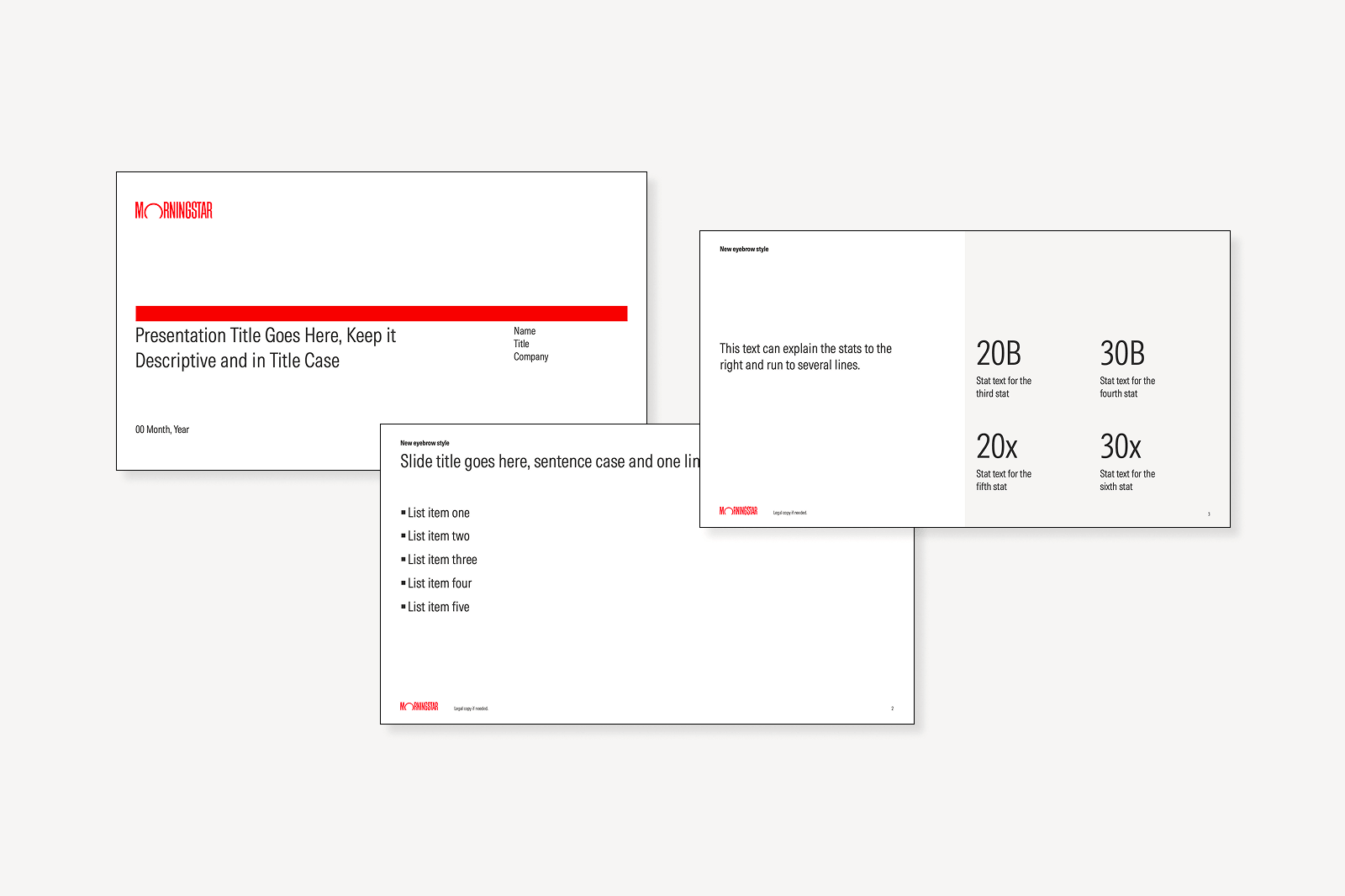
The Morningstar corporate template is designed for a wide range of uses, including sales, internal, and vendor presentations. The Morningstar logo and acquired brands are provided for use on the cover and end slides. All interior template pages use the Morningstar logo to enable greater consistency when slides are combined from different presentations.
Using the Template
The updated corporate PowerPoint template (Morningstar_03v0) is now available. To open it, launch PowerPoint and go to File > New from Template > MORNINGSTAR INC > Morningstar_03v0. By the end of 2026, it will also be installed on all employees’ computers and appear in a local templates folder.
Start every presentation from the Morningstar corporate PowerPoint template. It’s built on a twelve-column grid with preset margins, guides, and type sizes (24, 18, and 14 pt), and it includes a color palette matched to Chart Lab. Create new slides from the New Slide menu rather than pasting in slides from older decks, since formatting and colors can break. Use the icon and color sticker sheets for additional assets, and Chart Lab for charts. Lead each slide with your key finding, and keep text short. For full guidance, see Presentations.
These short how-to videos demonstrate how to use the presentation template's features.
- How to format text styles
- How to apply brand colors
- How to format charts and graphs
- How to use brand icons
Convert Outdated Decks with the Brand PowerPoint Skill
A pilot version of a Claude Skill is available to help convert outdated presentations to the most up-to-date corporate template. Fill out this form to join the pilot user testing group and get access to the skill.
The Brand PowerPoint Skill works with the Brand Plugin for Claude to apply layout, text, and iconography styles defined by the latest version of the Morningstar template. When a corresponding slide layout is not available in the template, the skill will make an estimation and suggest the closest layout. Minor refinements may still be needed, but the skill ensures all current styles are applied.
Once you have access to the Brand PowerPoint Skill and have activated it, drop a presentation that needs to be updated into a new Claude chat and insert the sample prompt below.
How to Contribute
This page will be updated with additional templates as they become available. For guidance on appropriate template use or to request new templates, submit a request to Creative Services.
